 Spell Beasts
Teacher sign in
Spell Beasts
Teacher sign in
Teacher guide · 2 of 13
Running your school
For School Admins: the whole school at a glance, staff accounts, classes, year groups, holidays and reports for governors.
School Admins see a School area that Teachers don’t. Teachers see only their own classes.
The whole school this week
Every class side by side: how many children practised, time spent, how many answers were right first time, and the words or children that need a look. Switch between the whole school, Key Stage 1 and Key Stage 2.
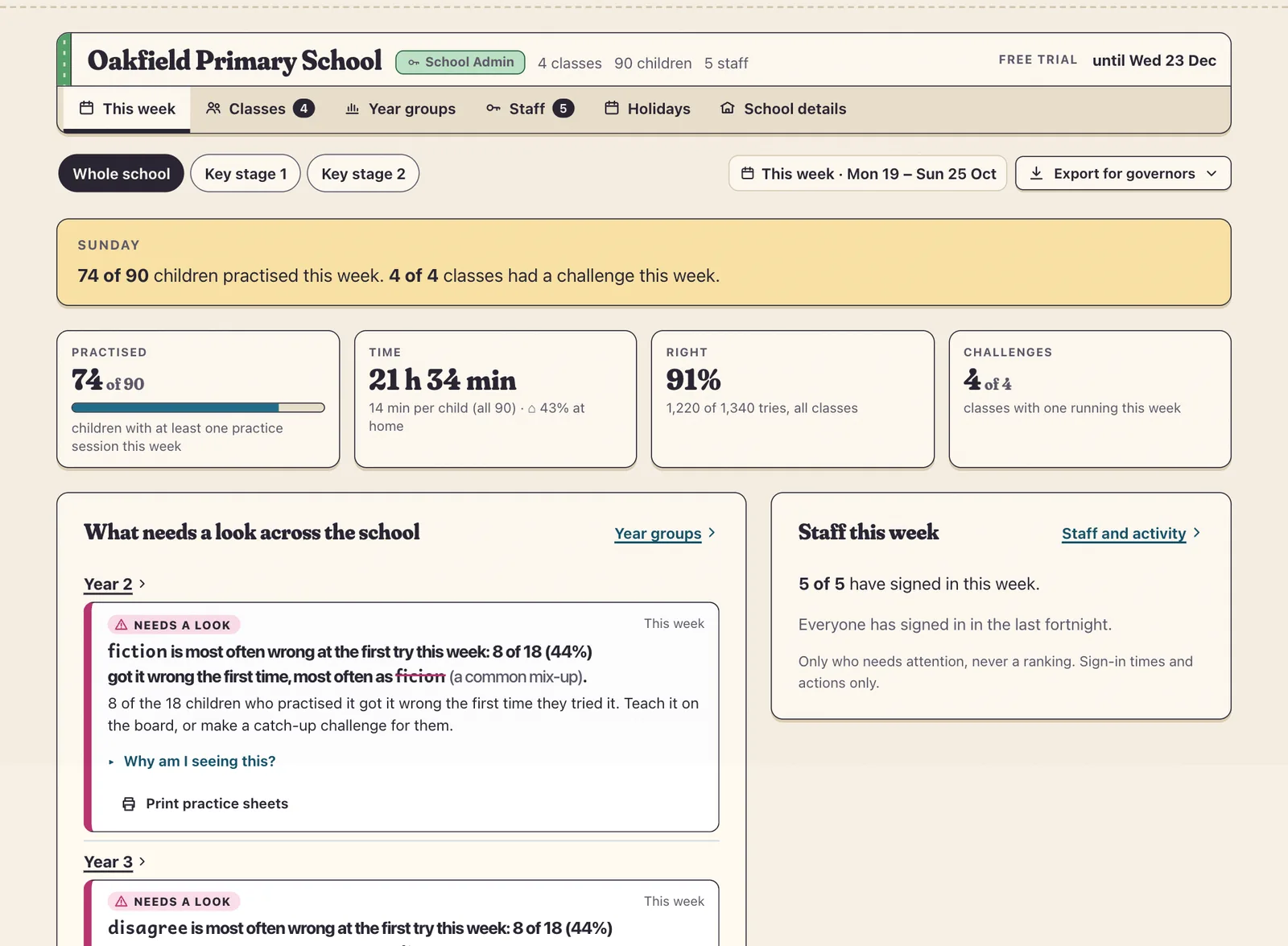
Use Export for governors for a printable summary or spreadsheet. It never names a child.
Staff
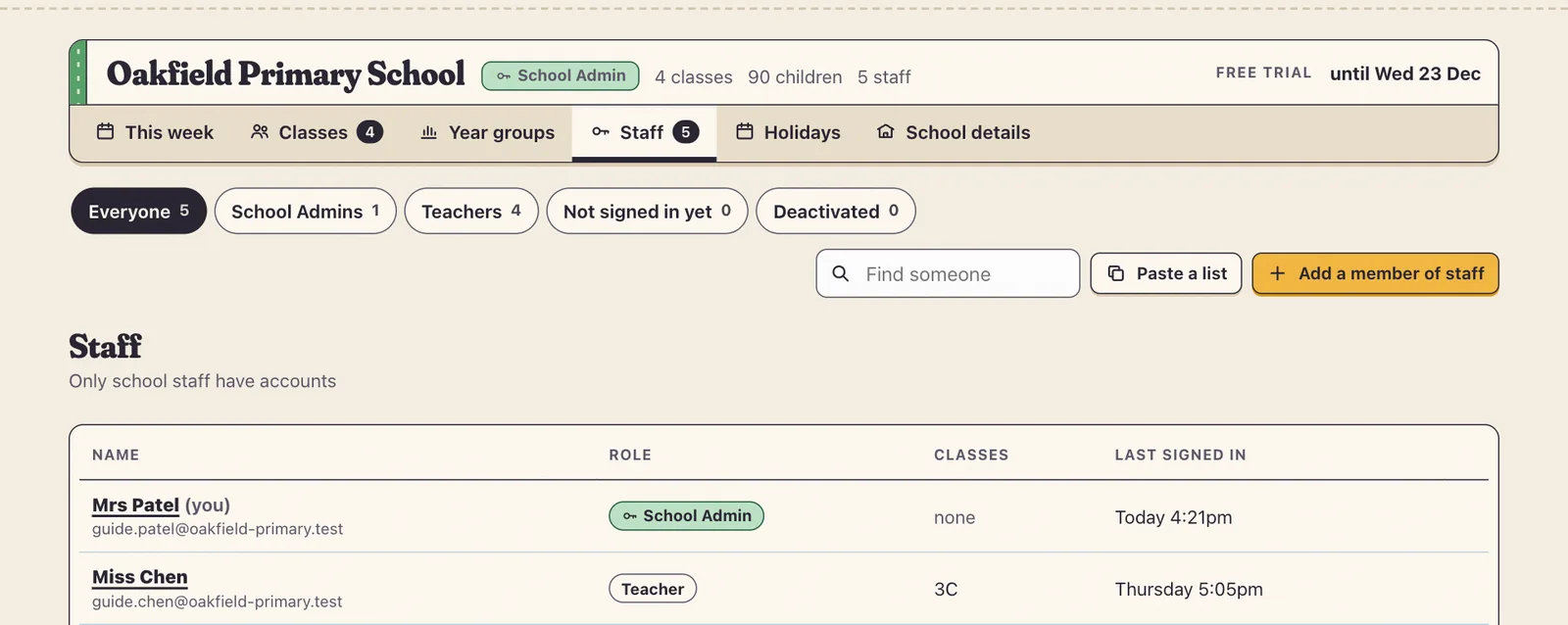
Open School › Staff and press Add a member of staff (or Paste a list for several).
Type their name and school email, choose Teacher or School Admin, and tick the classes they teach.
They get an email inviting them in. You can see when each colleague last signed in.
Tip When someone leaves, deactivate their account and hand their classes to a colleague in one step. Your school always keeps at least one School Admin.
Classes and year groups
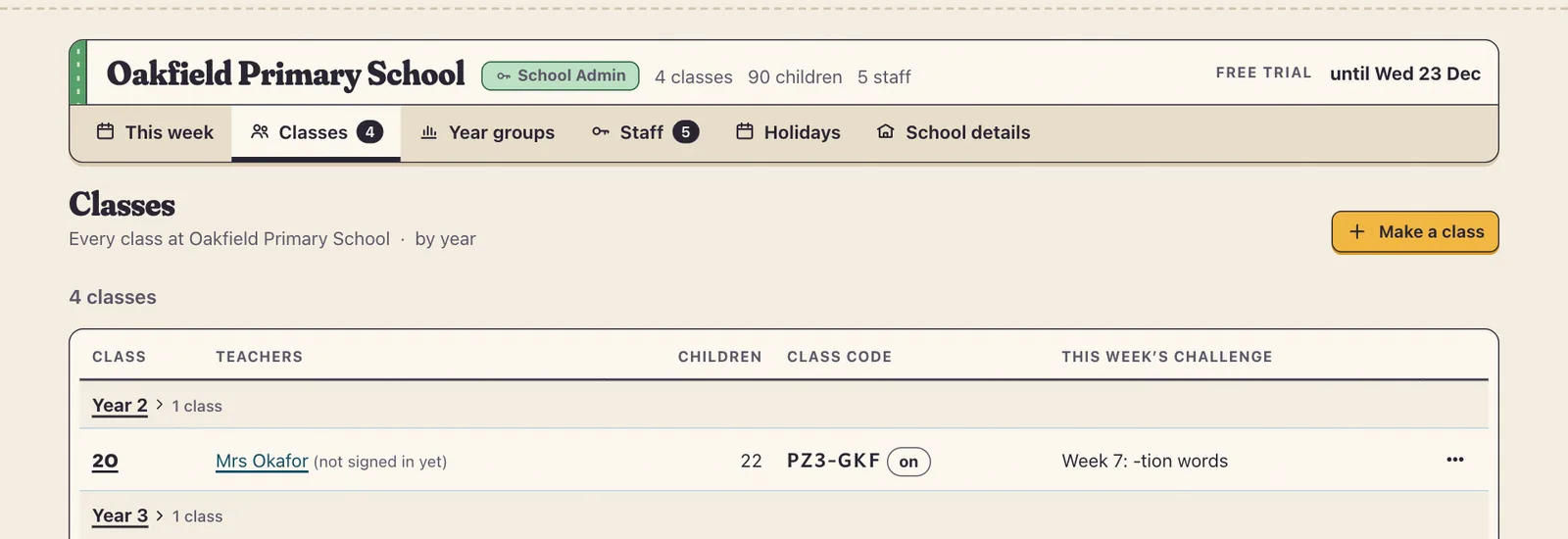
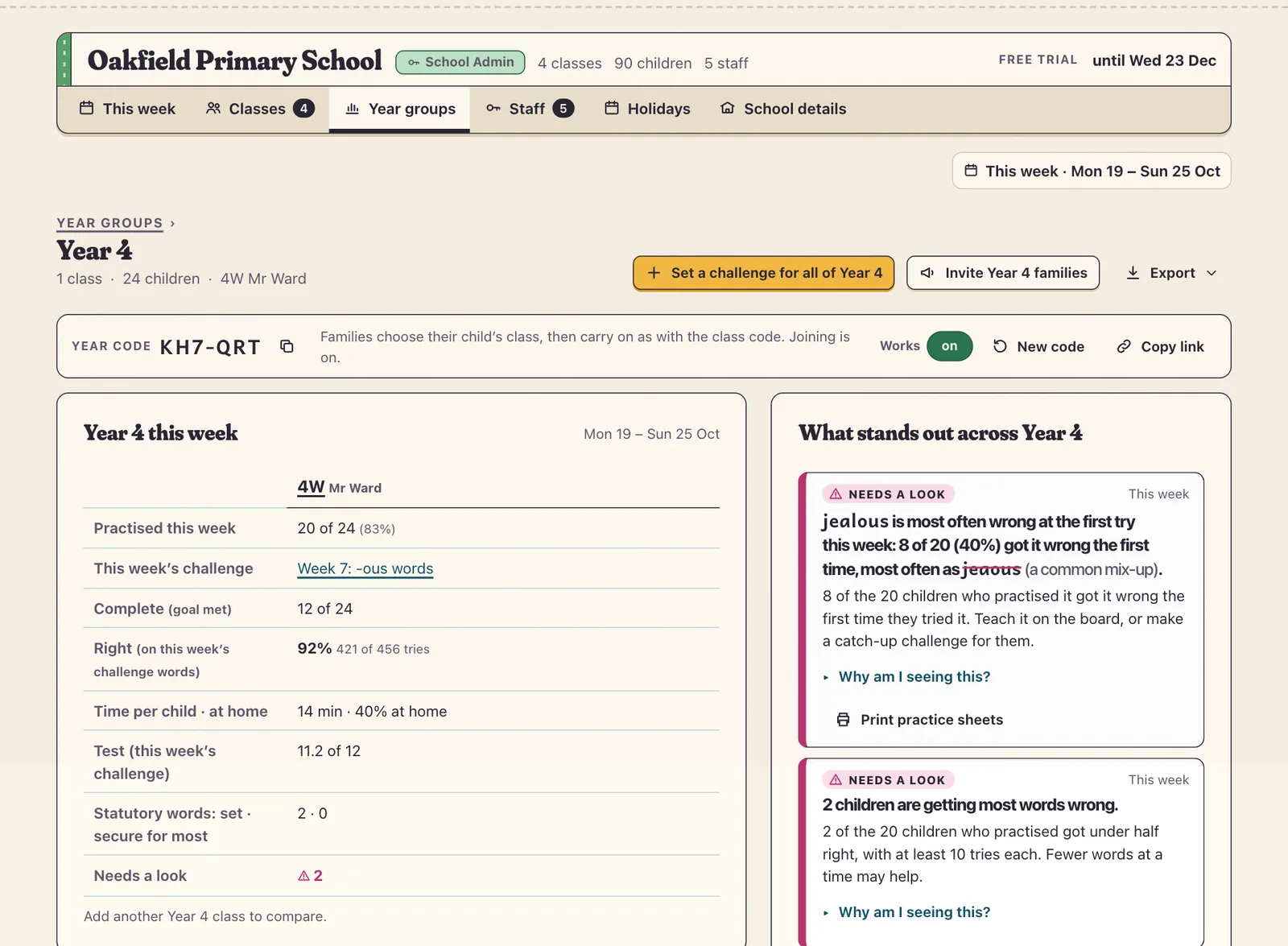
School › Classes lists every class by year with its teachers and class code. Year groups puts a year’s classes side by side and gives each year one year code, so families can choose their child’s class themselves.
Holidays and school details
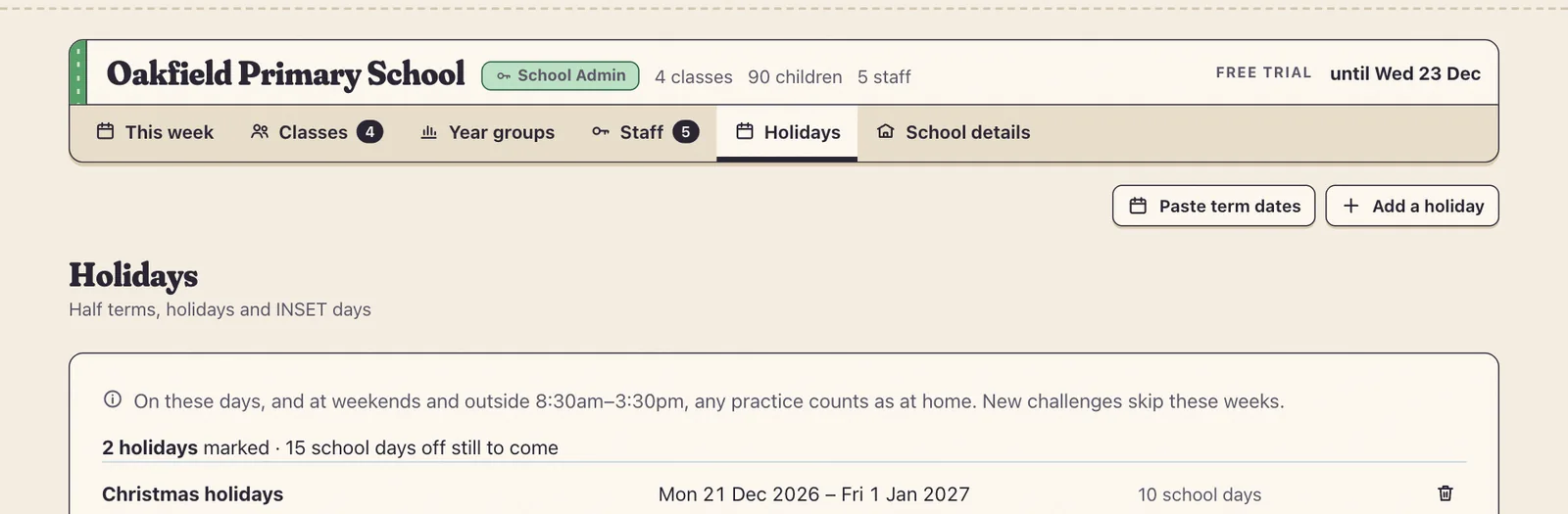
Mark holidays and INSET days in School › Holidays so practice at home is counted properly and new challenges skip those weeks. School details shows your plan, trial dates and a plain summary of what Spell Beasts stores.